
Introduction: Welcome to the Stitchy Side of Tech
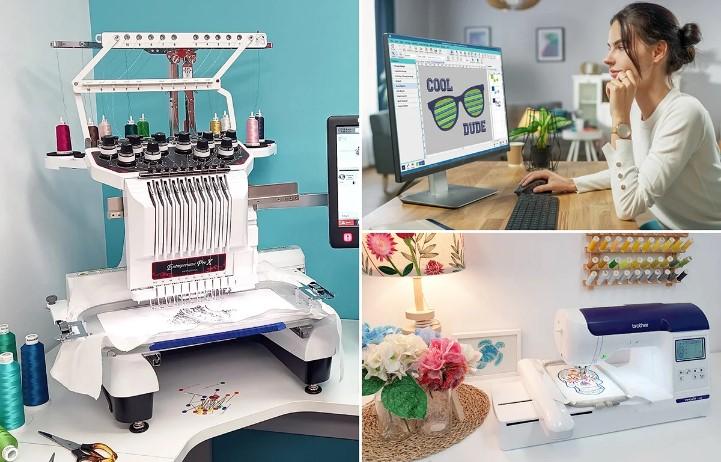
You just bought an embroidery machine, or maybe you inherited one from a crafty relative. You have a beautiful design on your computer screen. You hit “transfer.” And then nothing happens. Or worse, the machine starts beeping an error code. Sound familiar? The problem usually isn’t your machine or your design. It’s the file type. Understanding Embroidery File Formats is the single biggest hurdle beginners face, yet nobody explains it in plain English. So let me do that right now.
Think of embroidery formats like languages. Your machine only speaks one or two dialects. If you hand it a file in a language it doesn’t understand, it just sits there confused. This guide walks you through the most common formats, which machine uses which, and how to convert between them without losing your mind or your design quality. No degree in computer science required.
Why Can’t I Just Use a JPEG or PNG?
This is the number one question I hear. You take a photo, save it as a JPEG, load it onto a USB stick, plug it into your embroidery machine, and expect magic. The machine laughs at you. Here’s why.
Regular image files store pixels—millions of tiny colored dots arranged in a grid. An embroidery machine doesn’t understand pixels. It understands stitch commands: where to puncture the fabric, how far to move the hoop, when to raise or lower the needle. A JPEG contains none of that information. It’s like handing a piano player a photograph of sheet music. They can’t play what they can’t read.
So you need a translator. That translator is specialized software called a digitizer. The digitizer converts your image into stitch-by-stitch instructions and saves them in an embroidery file format that your specific machine model recognizes.
The Most Common Embroidery File Formats You’ll Meet
Let me introduce you to the usual suspects. Each has a personality, a preferred machine brand, and a few quirks.
DST – The Industry Workhorse
DST stands for Tajima Data Format. Tajima makes commercial multi-head embroidery machines. Because those machines dominate factories and embroidery shops, DST became the universal language of the industry. Nearly every embroidery software can export DST, and most home machines can read it with a simple conversion.
What you need to know: DST files do not store color information. That means when you load a DST design, the machine won’t tell you which thread color goes where. You have to track that separately with a printed color sheet. Also, DST uses a peculiar coordinate system that can confuse beginners, but your software handles that behind the scenes.
Best for: Commercial production and sharing designs with professional digitizers.
PES – The Home Sewer’s Best Friend
PES is Bernina’s and Brother’s native format. Since Brother sells millions of home embroidery machines, you’ll encounter PES constantly. Unlike DST, PES stores color sequence data. Your machine screen can actually show you which thread to load next. It also preserves some design metadata like author name and stitch count.
I personally love PES for home projects because it’s forgiving. You can edit designs more easily, and most digitizing software treats PES as a first-class citizen.
Best for: Brother, Babylock, and Bernina home machines.
JEF – Janome’s Native Format
Janome machines primarily use JEF (though some newer models also accept JAN). JEF stores color information and supports larger stitch counts than older formats. If you own a Janome, stick with JEF unless your manual specifically says otherwise.
One warning: Some free converters damage JEF files by misinterpreting the color palette. Always test a small stitch-out before committing to a big project.
EXP – Melco’s Choice
Melco machines use EXP. You won’t see this as often unless you work in a small commercial shop. EXP handles up to 20 colors and supports run, satin, and fill stitches cleanly. The main downside? Many budget digitizing programs ignore EXP entirely. You may need higher-end software like Wilcom or Hatch to export it properly.
CND – For Old Singer and Pfaff Models
CND is a dinosaur but still roaming in some basements. Older Singer and Pfaff machines require this format. It has tiny file size limits and cannot handle dense designs. If you use CND, keep your designs simple—think monograms and small logos, not sprawling landscapes.
XXX – Compucon and Singer Futura
XXX is quirky. Compucon and some Singer Futura models use it. The format supports color breaks but can corrupt easily if you transfer via unreliable USB drives. Always eject your drive properly before pulling it from the computer.
Which Format Should You Actually Use?
Look at your machine’s manual. I know, nobody wants to hear that. But page two or three lists the accepted formats. Use that list as your bible.
If you own a modern Brother (like the PE800 or Luminaire), use PES. Janome? JEF. Happy Embroidery machine? That’s DST or happ. There’s no “best” format. There’s only the one your machine recognizes.
Still unsure? Export your design in multiple formats from your digitizing software. Put them all on a USB stick. Insert the stick and scroll through the files. The machine will only show the ones it can read. Problem solved.
How to Convert Between Formats Without Breaking Your Design
You will need to convert. Maybe a friend shares a PES file but you own a Janome. Or you download a DST from Etsy but your machine wants JEF.
Your digitizing software should have a “Save As” or “Export” option. Open the original file, then export a copy in your target format. That’s the cleanest method.
Avoid free online converters. I’ve tested dozens. Most strip out stitch data, drop color information, or insert weird jump stitches. One famous converter turned a simple rose design into a chaotic scribble. Paid desktop software like Embird or SewWhat-Pro costs a little money but saves you hours of frustration.
If you absolutely cannot pay, Ink/Stitch (free, runs inside Inkscape) can convert between many formats. But prepare for a learning curve.
A Quick Note on Machine-Specific Quirks
Different machines handle the same format differently. A PES file sewn on a Brother SE1900 might look perfect. Load that same PES onto a Babylock, and the thread tension goes wild. Why? Because each manufacturer interprets certain stitch commands slightly differently. Always test on scrap fabric. I cannot stress this enough. Test. On. Scrap.
Conclusion: You Know More Than Most Beginners
Embroidery file formats feel overwhelming at first. DST, PES, JEF, EXP, CND, XXX—it looks like alphabet soup. But here’s the secret: ninety percent of beginners only need two formats. If you own a Brother or Babylock, master PES. If you own a Janome, master JEF. Everyone else can use DST as a fallback because nearly every machine converts it decently.
Stop stressing over which format is “best.” Instead, learn where to find your machine’s accepted format list. Get a decent digitizing or conversion program. Test your files before stitching the final piece. And remember that every expert digitizer once loaded the wrong file and watched their machine throw a hissy fit. It happens. You learn. You move on.
Now go create something beautiful with the right file format for your machine. Your needle is waiting.



 English
 Indonesia
 Arabic
 French
 Spanish
 Portuguese
 Deutsch
 Turkish
 Dutch
Dutch
 Russian
 Romaian
 Portuguese (Brazil)
 Greek
Greek